How to Design a Wedding QR Code Card in Canva (Free, Step by Step)
Design your own wedding QR code card in Canva in 10 minutes — free, with step-by-step instructions and tips for a QR code that actually scans.
By Guestcam Team
Why design your own QR card
A generic printed QR code sign works, but a card you design yourself in Canva can match your wedding's colors, fonts, and overall look — so it feels like part of your decor instead of an afterthought taped to the table.
What you need before you start
- Your Guestcam gallery's QR code, downloaded as a PNG (open your dashboard, go to the “QR koda” tab, and click “Prenesi samo QR kodo” — the Guestcam dashboard interface is in Slovenian, so those are the exact labels you'll see).
- A free Canva account — no paid subscription required for this.
- About 10 minutes.
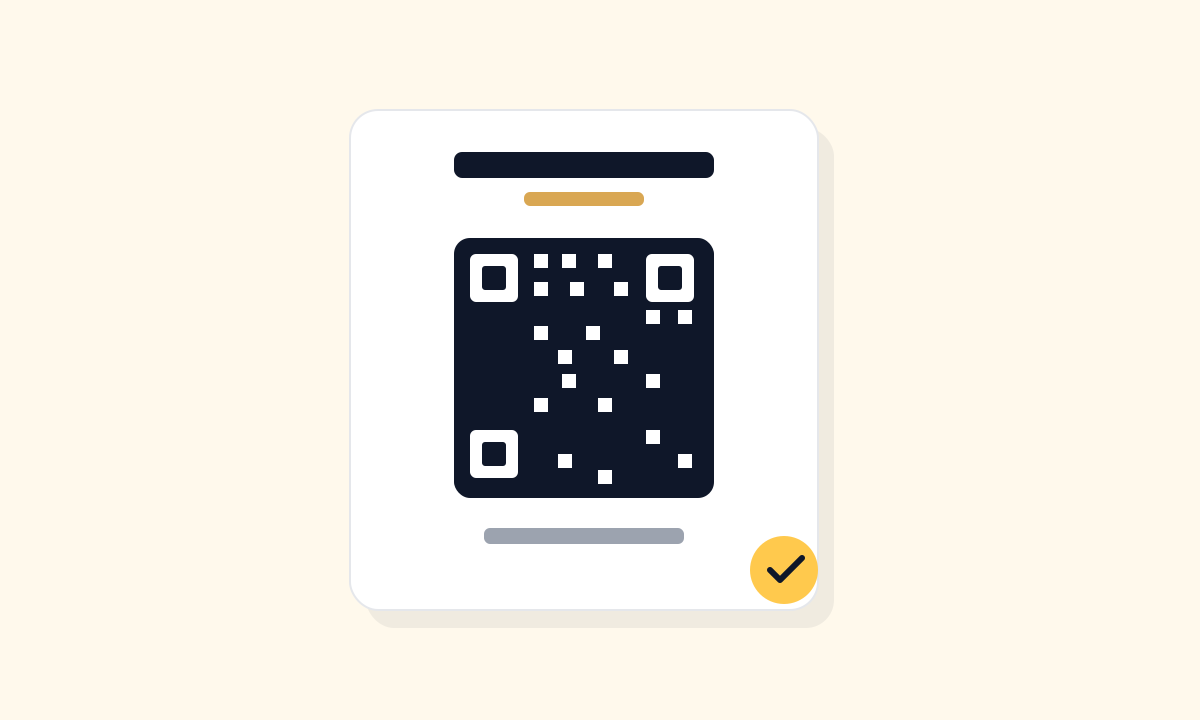
Step-by-step: designing the card in Canva
- Go to canva.com and start a new design — search “postcard” or set a custom size of 10 × 15 cm (a good size for table cards).
- Pick any template you like as a starting point, or start from a blank canvas.
- Add a text box with your names, then a second one below with the wedding date.
- Click Uploads → Upload files and add the QR code PNG you downloaded from your Guestcam dashboard.
- Place the QR code in the center, sized at least 3 × 3 cm so phone cameras can focus on it easily.
- Add one short instruction line underneath, e.g. “Scan & share your photos!”
- Match the fonts and colors to your invitations for a cohesive look, then click Share → Download → PDF Print.
Design tips for a QR code that actually scans
- Leave at least 8 mm of empty space (the “quiet zone”) around the QR code — phones use that margin to lock focus.
- Don't shrink the code below roughly 3 × 3 cm on a table card, or 2 × 2 cm minimum on a badge.
- Keep the QR code dark on a light background — low contrast is the most common reason a code fails to scan.
- Never place the QR code over a busy photo or pattern.
- Print one test card first and scan it yourself with two or three different phones before printing the full batch.
No time to design one? Use a ready-made template instead
If you'd rather skip the design work entirely, Guestcam includes 8 ready-made QR card templates that fill in your names and date automatically — download one as a print-ready PDF straight from your dashboard.
Create your free wedding gallery
Create your free wedding gallery →Guestcam FAQ
FAQ
Do I need Canva Pro to make a QR code card?+
No. A free Canva account covers everything in this guide — custom sizes, uploading your own QR code image, and PDF Print export.
Where do I get my wedding's QR code image?+
From your Guestcam dashboard: open your gallery, go to the “QR koda” tab, and click “Prenesi samo QR kodo” to download it as a PNG.
What size should I print the card?+
A6 (roughly 10.5 × 14.8 cm) works well for table cards. Use A5 or A4 for a larger sign near the entrance or gift table.
Why didn't my printed QR code scan?+
The most common causes are a low-resolution image (always use the downloaded file, never a screenshot), too little white space around the code, or a code printed too small. Test-scan before printing the full batch.
Guestcam
Every guest photo. One album.
Create a private gallery, share the QR code and collect photos and videos without an app.
Start free →Keep reading
Sharing wedding photos without an app – how it works in 2026
Guests scan a QR code with their phone camera and upload photos straight from the browser — no app download, no sign-up.
GuideWedding Photo App With QR Code: Collect Every Guest Photo (No App)
Put a QR code on each table — guests scan and upload photos straight to your private gallery, no app or login needed.
GuideHow to Create a Private Wedding Photo Gallery (Free, No App Needed)
The best free option is Guestcam: create a gallery, get a QR code, guests scan and upload — all private, no app needed.
Read in another language